
How to Migrate Your Leave Tracking (Off Vacation Tracker or BambooHR)
A practical, step-by-step guide to migrating leave tracking off Vacation Tracker or BambooHR: export users and balances, CSV import, reconcile, and go live cleanly.
Switching leave tools sounds scarier than it is. The fear is always the same: someone's balance comes across wrong, a booked holiday vanishes, and on day one you're fielding "where did my three days go?" messages. None of that has to happen. A leave migration is really just four careful steps — export, import, reconcile, go live — and the whole thing is usually done in an afternoon.
This guide walks through moving off Vacation Tracker or BambooHR specifically, but the playbook applies to almost any tool you're leaving. We'll be practical about the export, the numbers you must double-check, and how to switch over without a gap in coverage.
Before you start: pick your cut-over date
Don't migrate mid-week into a live, in-use system. Pick a clean cut-over date — usually the start of a month, or the start of your leave year if it's close. Everything before that date stays in the old system as history; everything from that date forward lives in the new one. This single decision removes most of the ambiguity later, because it tells you exactly which balance number to carry across.
Tell your team the date in advance, and freeze new requests in the old tool a day or two before, so balances stop moving while you migrate.
Step 1 — Export your people and balances
You need three things out of the old system: the roster (who works here), current balances (days remaining per person, per leave type), and upcoming approved leave (anything booked for after your cut-over date).
From Vacation Tracker. Absenca has a built-in Vacation Tracker import wizard that brings your people and leave balances across, and your leave history too, without reformatting your export. It's on Pro and the Custom Pack, not on the free Starter plan. Without the wizard, build the CSV below from the same export.
From BambooHR. You only need its leave data — name, work email, start date and the current balance per leave type — so ignore every other column.
Whatever the source, aim for a single clean CSV with at least:
| Column | Why it matters |
|---|---|
| Full name | Display + matching |
| Work email | Unique key for matching people |
| Start date | Drives pro-rata and seniority accrual |
| Office / location | Sets work days, timezone, public holidays |
| Leave type | Vacation, sick, personal, etc. |
| Balance remaining | The number you'll reconcile against |
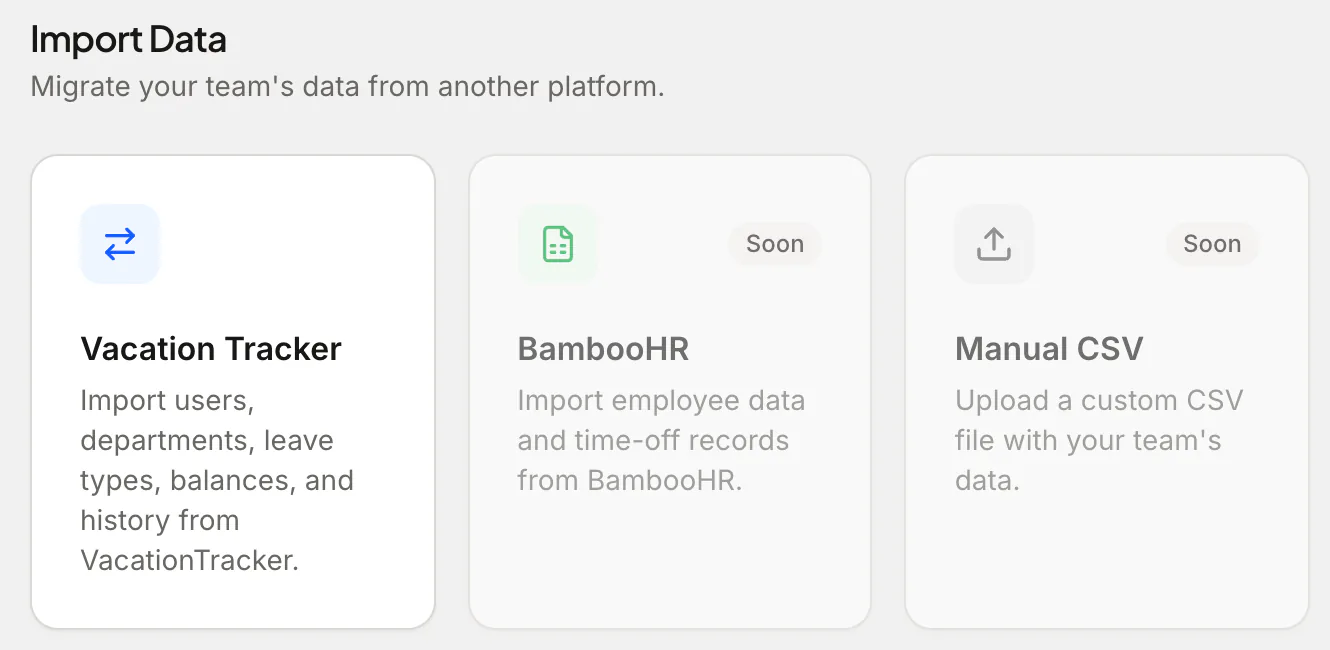
Step 2 — Import into Absenca via CSV
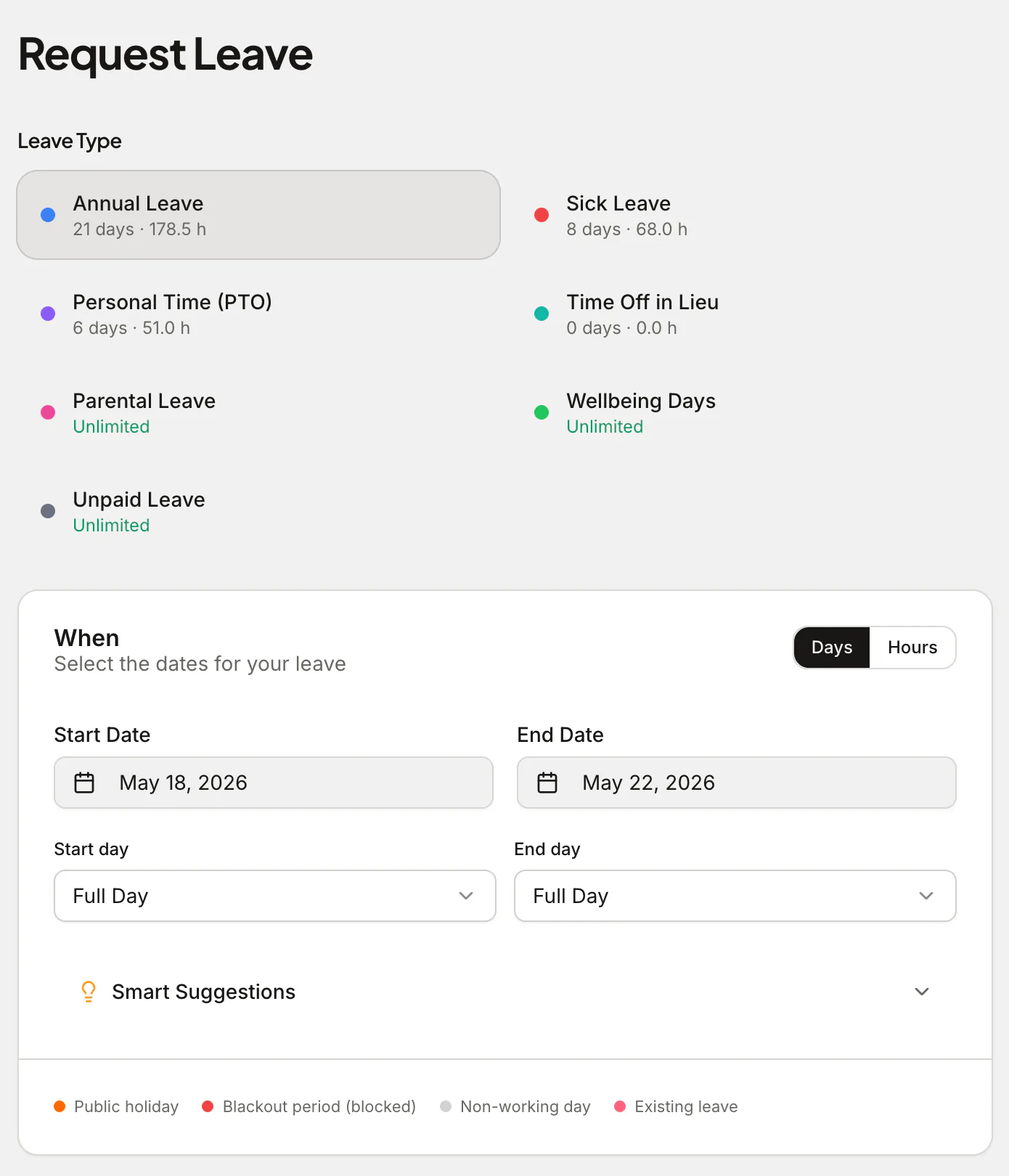
In Absenca, you set up the structure first, then pour people in. Create your offices (each carries its own work-day schedule, timezone, country and public holidays; the free plan has one office and Pro two), your leave types (vacation, sick, personal, parental, unpaid, plus any custom or half-day/hourly types), and your leave policies (allowances, accrual frequency, carry-over caps). This takes a few minutes and it's worth doing properly — it's the structure every imported balance will hang off.
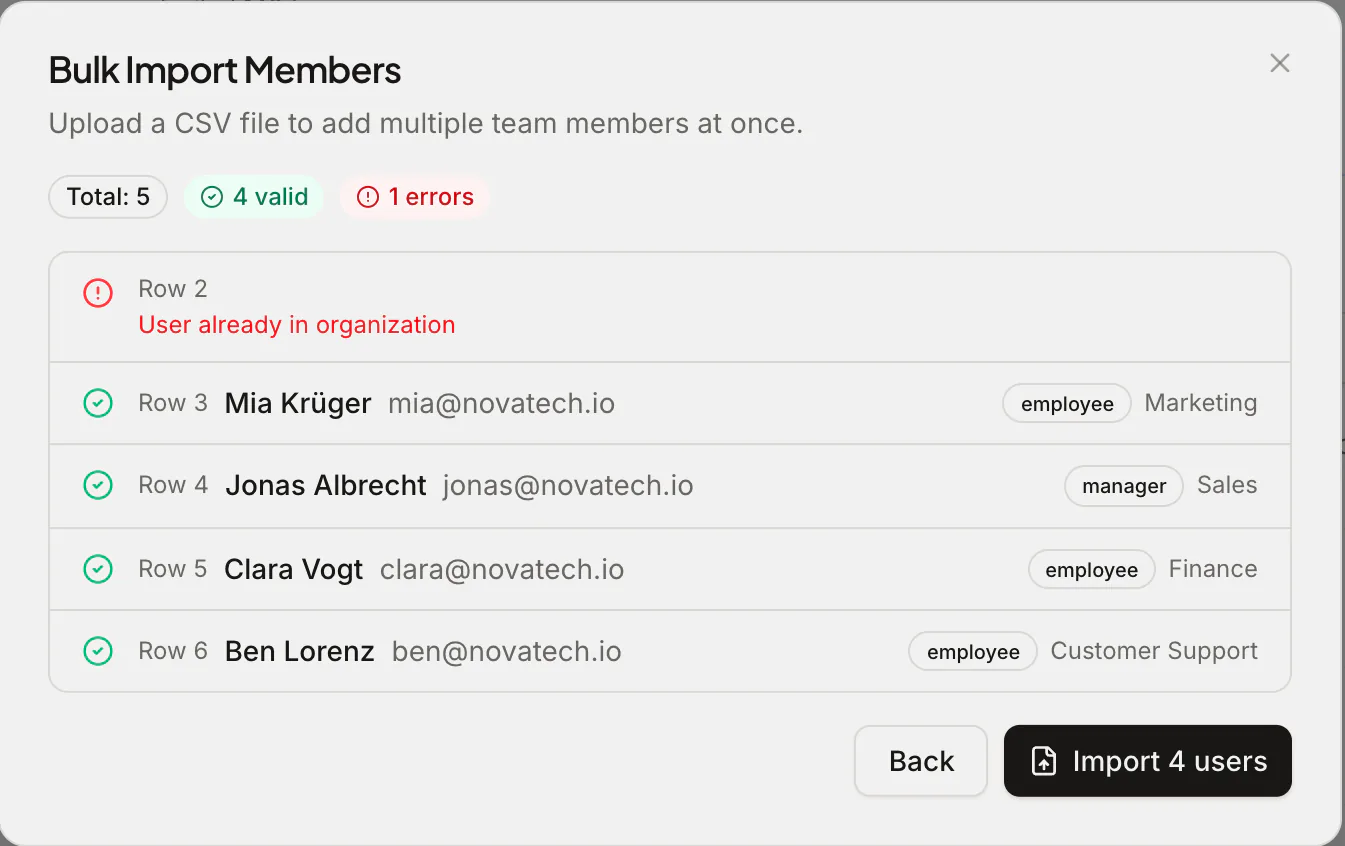
Then import your team from the spreadsheet. Map your CSV columns to Absenca's fields, assign each person to an office and department, and import. People come in as employees with the right manager and approver routing.
For balances, you have two clean options:
- Set opening balances directly to match the remaining days from the old tool as of your cut-over date. Simplest and most accurate for a one-time switch.
- Configure accrual and let it rebuild from the leave-year start, then sanity-check against the old numbers. Better if you want accrual running natively from day one.
Most teams use option 1 for the switch, then let accrual take over going forward.
Step 3 — Reconcile (the step you can't skip)
This is where a migration is won or lost. Before you tell anyone to log in, reconcile every balance against the old system. Don't sample — check all of them. For a small team it's minutes; for a larger one, sort both exports by email and diff the balance columns.
A short reconciliation checklist:
- Headcount matches — same number of active people in both tools.
- Every balance matches the old tool as of the cut-over date, per leave type.
- Upcoming approved leave is re-entered — anything booked for after cut-over exists in Absenca and has deducted from the right balance.
- Part-timers and mid-year joiners are pro-rated correctly (the annual leave calculator gives a quick second opinion).
- Carry-over from last year landed, and respects your cap and expiry.
- Public holidays are switched on for each office's country.
- Approvers and managers route to the right people.
Mismatches almost always trace back to one of three things: a different leave-year start date, carry-over handled differently between the tools, or someone's start date being off (which throws pro-rata). Fix the structure, not the individual number, and the rest usually falls into line.
Step 4 — Go live
Once balances reconcile, go live on your cut-over date. Send a short note to the team with the login link, point them at the shared calendar, and ask them to confirm their own balance looks right — a second set of eyes per person catches anything you missed. Keep the old tool in read-only mode for a month as a safety net, then cancel it.
That's it. No gap in coverage, no lost requests, no day-one panic.
What it costs after you switch
Part of the reason teams migrate is price and free ceiling. Here's an honest comparison, with each competitor's free plan and price cited from its own page and dated (always check current rates):
| Tool | Free plan | Price |
|---|---|---|
| Vacation Tracker | None; a 14-day trial1 | $2 or $4 a user a month, with a $50 or $100 minimum2 |
| BambooHR | None3 | $10 to $25 an employee a month; from $250 flat up to 25 people3 |
| Absenca | Free for up to 10 people | Pro: $37.50 a month for up to 50 people |
For any team of 11 to 50 people, Absenca is $37.50 a month on Pro, or $33.75 a month billed annually ($405 a year). Absenca costs less than Vacation Tracker's Core plan for teams of 10, 20, 30 and 50 people.2 Absenca costs less than BambooHR's Core plan for teams of 10, 20, 30 and 50 people.3
If you're happy with Vacation Tracker, there's no urgency to move. BambooHR makes sense when you need a full HR platform, not just leave. BambooHR includes applicant tracking in every plan and performance management from Pro; payroll, benefits and time and attendance are paid add-ons.3 Absenca's pitch is narrower and cheaper: it does leave properly — shared calendar and wallchart, accruals, carry-over, TOIL, blackout periods, 190+ countries of public holidays — and the price reflects that focus. Bradford Factor analytics come with Pro.
A quick note: statutory leave entitlements and carry-over rules vary by country. Software applies your policy consistently, but this is general guidance, not legal advice — check the rules in your jurisdiction.
Frequently asked questions
Will I lose my historical leave data? No need to. Keep the old tool in read-only for a month as your archive, and only migrate current balances plus future-booked leave. Most teams don't import years of history — it's rarely needed once balances are correct from the cut-over date.
How long does a migration actually take? For a team of 10–50, an afternoon is realistic: structure setup, CSV import, and reconciliation. The reconcile step takes the most care, not the most time.
Can I move people in bulk, or one at a time? In bulk. Absenca imports your whole roster from a CSV, so you're not re-keying anyone. You map columns once and import the lot.
What if my balances don't match after import? That's expected on the first pass, and it's why reconciliation exists. The usual culprits are a different leave-year start, carry-over handled differently, or a wrong start date affecting pro-rata. Fix the policy setting and most balances correct themselves.
Do we need to tell employees anything? Yes — give them the cut-over date, freeze new requests in the old tool just before, and ask everyone to confirm their balance after go-live. That two-minute check from each person is your best safety net.
Ready to move? Start free with Absenca — free for up to 10 people, no credit card; Pro is $37.50 a month for up to 50. First step: import your team from a spreadsheet in minutes, then reconcile and go live.