
One Shared Leave Calendar for the Whole Office, in Google or Outlook
Put every approved absence in one shared Google or Outlook calendar that updates itself, so the team sees who's out in the calendar they already use, without anyone adding events by hand.
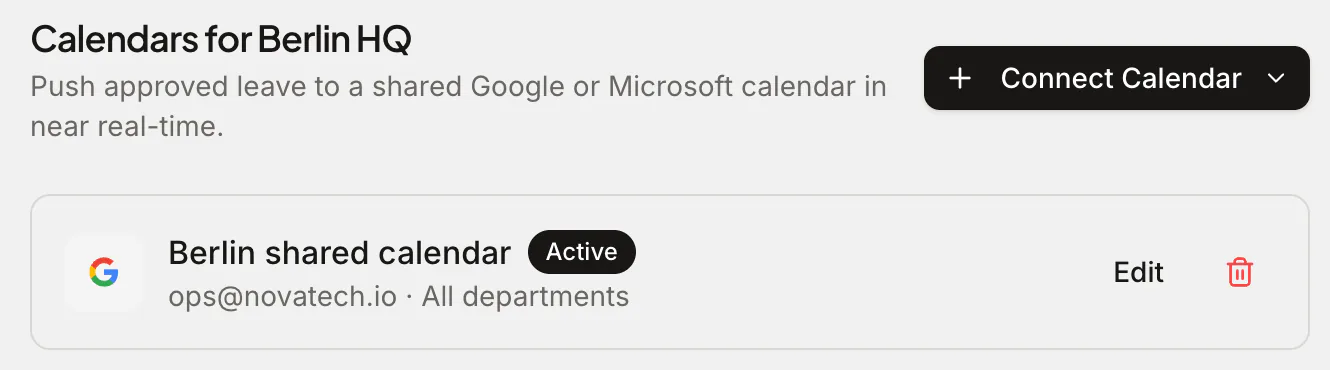
Ask a team where they look to see who's out, and the answer is rarely "the leave tool". It's the calendar they schedule meetings in. That's why so many teams end up with a hand-maintained "Team holidays" calendar that someone forgets to update the week it matters.
There are two levels of calendar sync in Absenca, and the difference is worth knowing.
Level 1: your own leave in your own calendar (every account)
On the free plan, anyone can sync their own approved leave into their personal Google or Outlook calendar, or subscribe to a personal calendar feed. It keeps your own diary honest: colleagues booking a meeting see you're away.
What it doesn't give you is the team view. Each person's leave lives in their own calendar, so to see who's out across the office, you still open Absenca. For a small team that's fine. We covered the personal setup in how to track time off in Google Calendar.
Level 2: one shared calendar for the office (Pro)
On Pro, an admin can connect a Google or Microsoft account for an office, and Absenca creates a dedicated shared calendar in that account. Every approved absence for the office is written to it, kept up to date as requests are approved, changed or cancelled.
Share that calendar with the team the way you'd share any calendar, and everyone sees who's out alongside their own meetings, in Google Calendar or Outlook, on desktop and phone.
A few details that matter:
- Absenca creates its own calendar. It doesn't write into anyone's personal calendar or an existing team calendar. On Google, it only asks for permission to manage calendars it creates.
- One calendar per office. A two-office company gets a Berlin calendar and a Zurich calendar, each with its own people and holidays.
- It follows the source of truth. Cancel a request in Absenca and it disappears from the shared calendar too. Nobody maintains it by hand.
Calendar feeds for teams and departments
Pro also unlocks shared calendar feeds: subscribable links for a department, an office or the whole organisation. They're a good fit when a manager wants "my team's leave" in their own calendar without seeing the whole company, or when a calendar app that isn't Google or Outlook needs to subscribe.
How to set it up
- Go to Settings → Shared Calendars for the office (admins and location-admins).
- Click Connect Calendar and choose Google or Microsoft.
- Sign in with the account that should own the calendar. A shared ops or admin account works better than a personal one, so the calendar doesn't depend on one person's login.
- Share the new calendar with your team from Google Calendar or Outlook.
Privacy: what the calendar shows
A shared calendar is visible to everyone you share it with, so share it deliberately: the office's team, not the whole internet. Before sharing it widely, look at a week of entries and make sure you're comfortable with what colleagues will see. The shared team calendar guide covers how to decide what a team-wide view should reveal.
Frequently asked questions
Which plan includes the shared office calendar? Pro ($37.50 a month for up to 50 people) and the Custom Pack. Personal calendar sync is on every account.
Does it work with Outlook? Yes. Connect a Microsoft account instead of a Google one, and the shared calendar is created in Outlook.
What happens if we disconnect it? Absenca stops updating the calendar. You can reconnect at any time.