
Running Leave From Slack: Commands, Approvals and the Who's-Out Digest
A practical guide to handling leave inside Slack with Absenca: every /absenca command, one-click approvals, automatic Slack status and a daily or weekly who's-out digest.
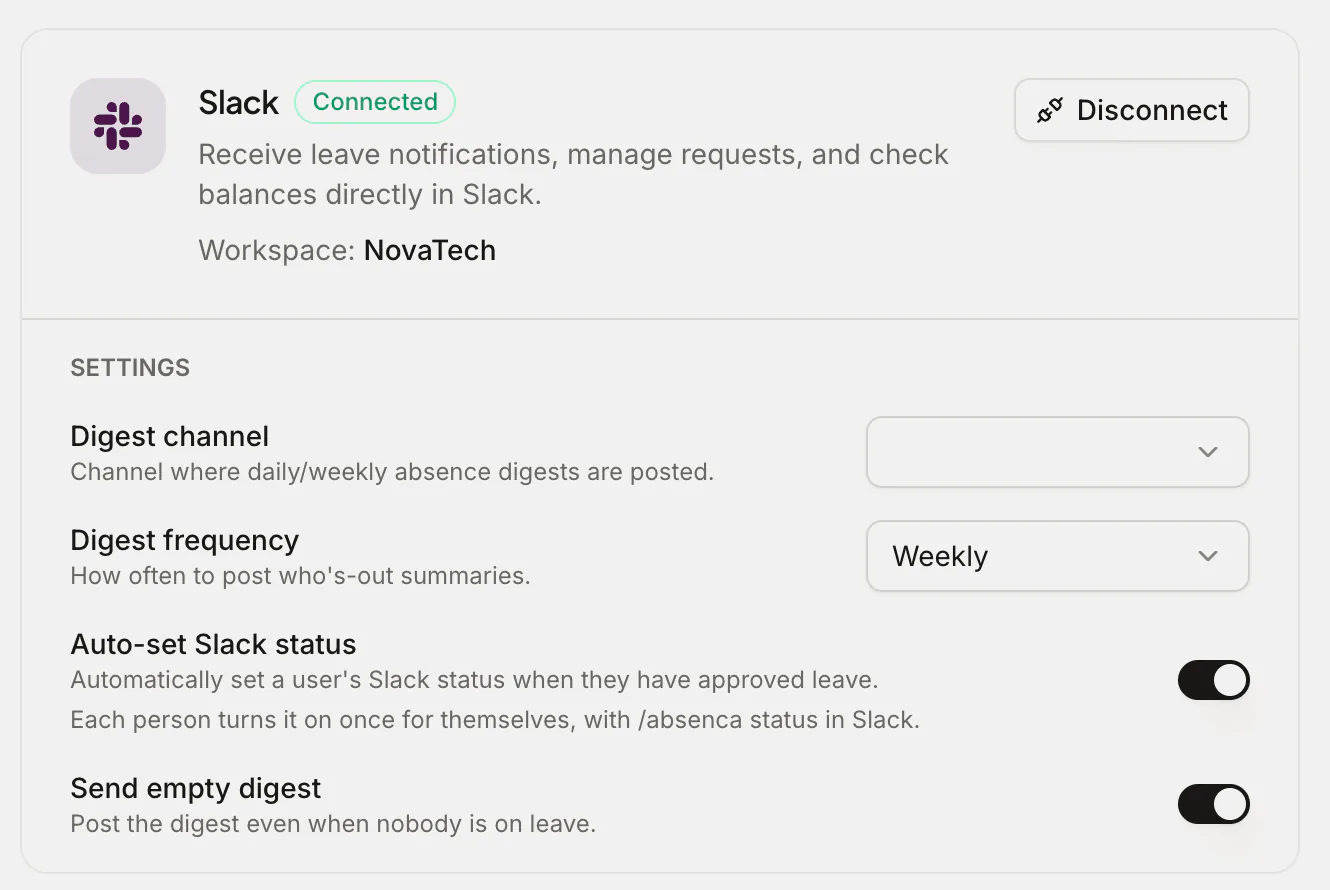
If your team spends the day in Slack, a leave process that lives somewhere else gets ignored. People forget to submit, managers forget to approve, and "who's off today?" gets asked in a channel every morning.
Absenca's Slack bot, included in Pro, moves the day-to-day of leave into Slack while the leave records stay in one place. This guide covers what it does once it's set up: the commands, how approvals work, the automatic status, and the who's-out digest. (If you haven't installed it yet, start with how to set up a Slack time-off bot.)
How people find each other
Absenca matches Slack users to Absenca accounts by email address. As long as someone's Slack email is the same as their work email in Absenca, the bot knows who they are, which office they're in, and which manager approves their leave. No separate user mapping to maintain.
Commands for everyone
Every command starts with /absenca:
| Command | What it does |
|---|---|
/absenca balance |
Your remaining balance for each leave type |
/absenca leave |
Opens a request form: leave type, dates, half-days, reason |
/absenca whosout |
Who's away today |
/absenca calendar 2026-11 |
Who's away in a given month |
/absenca holidays |
Upcoming public holidays for your office |
/absenca blackouts |
Upcoming blackout periods, when leave is restricted |
/absenca entitlements |
What you're entitled to this leave year |
/absenca toil |
Your time-off-in-lieu balance |
/absenca status |
Turn automatic Slack status on or off for yourself |
A request made in Slack goes through the same rules as one made in the web app: the same balances, blackout periods, public holidays and approval routing.
Commands for managers and admins
Managers and admins get a few more:
/absenca pending: requests waiting for your decision/absenca pendingtoil: TOIL claims waiting for approval/absenca teambalance @name: a team member's balances/absenca member @name: their profile, office and department/absenca statsand/absenca reports 2026: headline numbers for your team
And for admins:
/absenca adjust @name annual +1 Long-service day: adjust a balance, with a reason/absenca audit: the latest entries from the audit log
Approvals in one click
When someone submits a request, in Slack or in the web app, the approver gets a New Leave Request message with the dates, the leave type and two buttons: Approve and Reject. One click, done. The employee gets a DM with the decision straight away.
Cancellations notify the approver too, and if a request sits undecided, approval reminders nudge the approver so nothing waits for a week.
Everything decided in Slack lands in the same records as the web app: balances update, the wallchart updates, and the decision appears in the audit log with who made it.
Automatic Slack status
When the setting is on for your workspace, each person can opt in with /absenca status. From then on, Absenca sets their Slack status while they're on approved leave, so colleagues see they're away before they @mention them, and clears it when they're back.
It's opt-in per person on purpose: some people want their status set automatically, others prefer to manage it themselves.
The who's-out digest
Pick a channel and a frequency in Settings → Integrations:
- Daily posts who's out today, each morning.
- Weekly posts on Monday with who's out for the rest of the week.
You can also choose whether to post when nobody's away. Some teams like the reassurance of "nobody's out today"; others prefer a quiet channel.
The digest is what usually kills the "is Anna in today?" question. It's also the thing new hires notice first.
What still happens in the web app
The bot handles the daily traffic. Setup stays in the web app: leave types and policies, accrual and carry-over rules, public holidays, blackout periods, reports and the wallchart. Managers who want the bigger picture (who's out across the whole month, overlaps between teams) still go to the shared team calendar.
What about Microsoft Teams and Google Chat?
Absenca's Teams and Google Chat bots are built and coming soon, with the same commands. Until then, teams on those tools request leave in the web app and approve from the link in the email notification. If your company is split between Slack and Teams, everyone shares the same leave records either way.
Frequently asked questions
Which plan includes the Slack bot? Pro, at $37.50 a month for up to 50 people, or $405 a year.
Can employees see each other's balances in Slack?
No. /absenca balance shows your own. Only managers and admins can look up a team member's balance.
Does everyone need an Absenca account? Yes. The bot links each Slack user to their Absenca account by email, so people need to be in Absenca with the same work email they use in Slack.