
Leave approvals
A time off approval workflow that never stalls
Every request goes to the person who should decide it, a backup approver steps in when every manager is away, and reminders follow up until someone answers.
Free for up to 10 people · 11 to 50 people: $37.50 a month on Pro
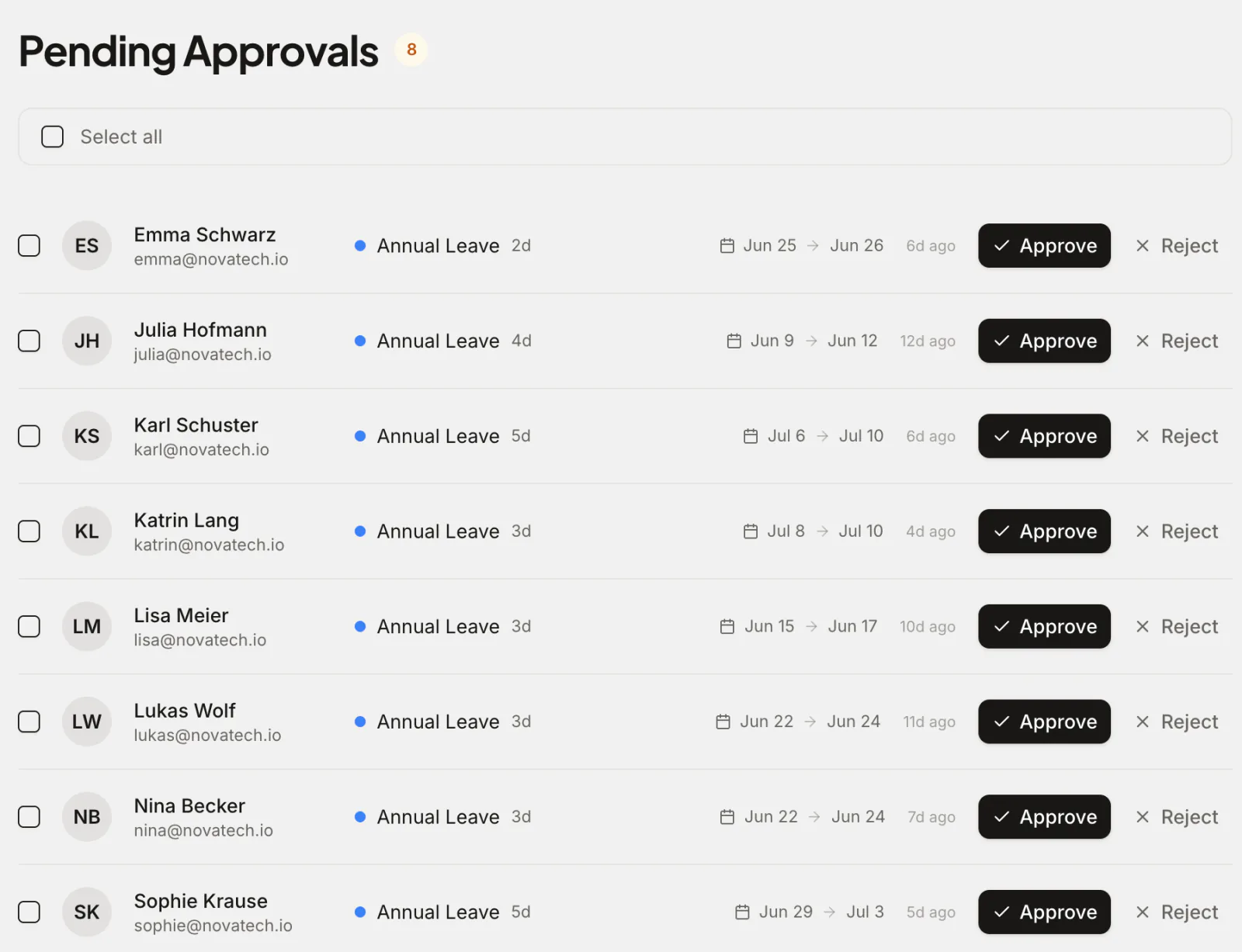
Absenca's leave approval workflow sends each time off request to the requester's managers, or to the organisation's admins when nobody manages them. Any one of them can approve or reject it: one decision settles it, with no chain of sign-offs. If every manager of a department is on leave, the department's backup approver gets the request instead of it sitting in an empty inbox. Reminders go out on the working days you choose, and a request nobody answers can expire on its own, so nothing waits forever.
Requests that break your rules never reach the queue. Blackout periods, the most people a department allows off at once and the employee's balance are all checked when the request is submitted, so the approver only judges requests that are allowed. Approval reminders are on every plan, the free Starter plan included. Approving from Slack and the audit log are on Pro and the Custom Pack, not on the free Starter plan.
What you get
Routed to the right person
Requests go to the employee's managers, or to the admins when they have none. Admins can decide any request, and location admins any request from their offices.
A backup approver per department
Name one person per department who can approve or reject while every manager of that department is on leave. Their decisions are labelled as backup approvals.
Reminders that follow up
Approvers get a reminder on the working days you set for each office, and an unanswered request can expire on its own after a deadline you choose.
Approve in bulk or from Slack
Select several requests and approve or reject them together, or answer from the Slack message with its Approve and Reject buttons, on Pro.
Who approves a leave request
When someone submits a request, Absenca looks up the managers of their department. Each of them is notified by email and in the app, and the request appears in their approval queue. If the employee has no manager, every active admin of the organisation receives it instead, so a request can't fall into a gap in the org chart.
Admins can approve any request in the organisation, and a location admin can approve requests from the offices they look after. Whoever acts first settles it: the request is approved or rejected, the balance moves at once, and the employee is told. There are no approval levels to configure and no second sign-off to wait for.
Some leave doesn't need a decision at all. A leave type can be set to skip approval, so a sick day of that type is approved the moment it's logged, and leave a manager books for their team is approved as it's booked.
The backup approver: when every manager is away
The classic stalled request is one sent to a manager on holiday. Absenca handles it with a backup approver set on each department. While every manager of that department is on leave, new requests also go to the backup approver, appear in their queue, and can be approved or rejected by them.
A decision made this way is marked on the request, for example "Approved by Greta Vogel (backup approver)", so the managers can see who stood in when they return. The backup approver's authority ends there: they can't delete leave or book leave for the team, and once a manager is back, requests go to the managers again.
Approval reminders and expiry
Each office sets the working days after submission on which approvers get a reminder; new offices start with days 1, 3 and 5. Reminders count working days on the office's schedule, skipping its days off and public holidays. They arrive as one email digest per approver, an in-app notification and, if your workspace uses the Slack bot, a Slack message with Approve and Reject buttons.
You can also set a deadline. A request still pending after that many working days expires: the days held for it are released, and the employee is told, with an optional message from you, so they can book again. If you'd rather requests wait however long it takes, switch expiry off for that office.
What the approver sees, and what's already checked
The approval queue lists every pending request with the employee, leave type, dates and number of days. Open one to see half days, the employee's reason and any attachment, such as a doctor's note. Approve with one click, or reject with a note explaining why.
Rule checks happen before a request reaches the queue. A request that falls inside a blackout period, would put more people off than the department allows at once, overlaps leave the person already has, or needs more days than their balance holds is refused when it's submitted, with the reason shown to the employee. For the judgement calls that remain, the wallchart shows who else in the team is off on the same days.
A record of every decision
Each request keeps who approved or rejected it and when. The audit log, on Pro and the Custom Pack, not on the free Starter plan, adds an organisation-wide trail: every approval with its dates and days, so you can answer "who approved this?" months later without searching email.
If a decision needs undoing, an approver can revise it and send the request back to pending. Reviving a rejected request checks the same rules as a new one, so it can't land on dates that are no longer free.
Approving from Slack, Teams and Google Chat
With the Slack bot, on Pro and the Custom Pack, not on the free Starter plan, approvers get each new request as a Slack message and approve or reject it there; the queue in the app updates at once. Approvals aren't done by replying to an email: the email notification links to the approval queue, where one click decides it.
Microsoft Teams and Google Chat apps are built and coming soon, but neither can be installed yet.
Why teams choose Absenca
- Requests go to the employee's managers, or to admins when there are none
- One decision settles a request, with no chain of sign-offs
- A backup approver per department while every manager is away
- Reminders on the working days you choose, with optional expiry
- Blackouts, department limits and balances checked before the queue
- Bulk approve and reject
- Free for up to 10 people; Pro is $37.50 a month for up to 50 people
Frequently asked questions
- Who approves leave requests in Absenca?
- The requester's managers, that is the managers of their department. If the employee has no manager, the organisation's active admins receive the request. Admins can approve any request, and location admins can approve requests from their offices. The first decision settles it.
- Can a request need more than one approver to sign off?
- No. One approver's decision settles a request; nobody has to sign off after the first. What Absenca adds instead is a backup approver for when every manager is away, and reminders so requests don't sit unanswered.
- What happens if a manager is on holiday?
- If the department has other managers who are in, they decide as usual. If every manager of the department is on leave, the department's backup approver receives new requests and can approve or reject them, and the decision is labelled as a backup approval.
- Can approvers be reminded automatically?
- Yes. Each office picks the working days after submission when reminders go out, by email, in the app and in Slack where the bot is installed. You can also set a deadline after which an unanswered request expires. Approval reminders are on every plan, the free Starter plan included.
- Can a manager approve leave from an email?
- No. The email tells the approver about the request and links to the approval queue, where one click approves or rejects it. To decide without opening the app, use the Slack bot, on Pro and the Custom Pack, not on the free Starter plan.
- Can I approve several requests at once?
- Yes. Select requests in the approval queue and approve or reject them together. If one can't go through, for example because it was already decided, the rest still do and you're told how many failed.