
Built for the person who approves
A leave tracker built around the manager's job
Clear the approval queue in a few clicks, see exactly who's covering before you say yes, and stop a whole team booking the same week — without a spreadsheet or a back-and-forth email thread.
Free for up to 10 people · 11 to 50 people: $37.50 a month on Pro
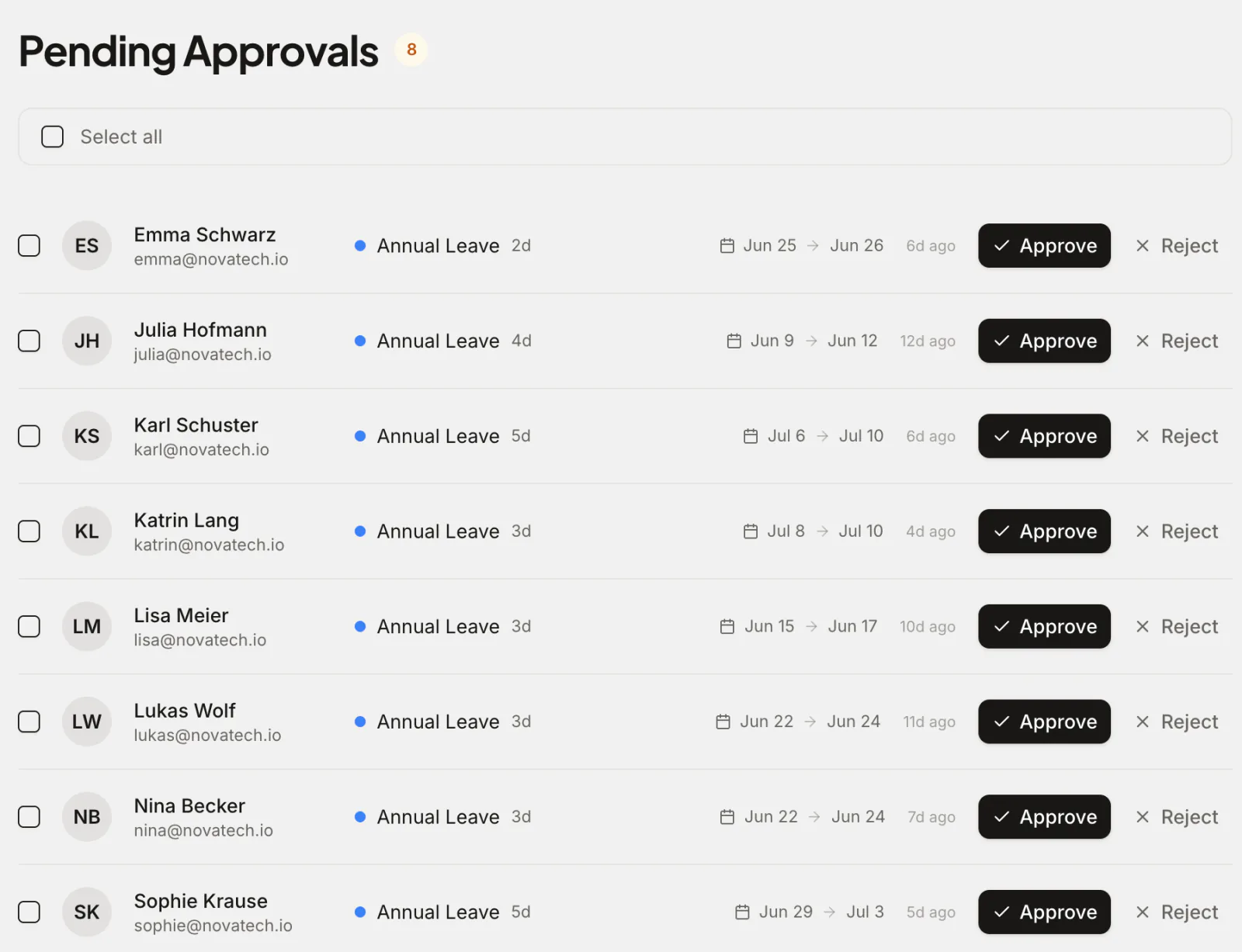
Most leave tools are designed for the person requesting time off. The harder job belongs to the manager who has to answer one question fast: can I approve this without leaving the team short? Absenca puts that decision front and centre: every pending request in one queue, the wallchart of who else is off a click away, and department limits and blackout periods that refuse a request when it's submitted, before it ever reaches you.
You approve from wherever you already work — the web or Slack — and the calendar, balances and everyone's view update the moment you tap yes. No reconciling a spreadsheet, no wondering who already booked that week.
What you get
A real approval queue
Every pending request in one list, routed to the right manager, with the leave type, days and dates in view and the reason and any attachment one click away. Approve or decline in a click — or in bulk when you're catching up.
Coverage a click away
Before you approve, check the team calendar or wallchart for who else is already off those days, so you're never the one who finds out too late that three people are away.
Limits that hold the line
Set a maximum number of people off at once per department, plus blackout periods for crunch weeks — and Absenca refuses any request that would breach them when it's submitted.
Approve from anywhere
Get an interactive approval message in Slack, or follow the email to your approval queue, where one click approves it.
Decide in seconds, not after three emails
A request lands in your queue with the leave type, the days it takes and the dates, and opens to show the reason and any attachment. The wallchart shows who else is already off those days. You approve or decline with one tap, and the employee gets an instant answer.
A request that would put more people off than the department's limit, or that falls inside a blackout period, is refused when the employee submits it, so it never reaches you. Everything else comes to you with the wallchart a click away: the decision stays yours.
See who's out without asking
The team calendar and wallchart show who's off today, this week and next, by department or office, so you can plan handovers and cover without pinging the channel. A daily who's-off summary can post to Slack automatically.
Managers only see the people and departments they're responsible for, so a department head isn't wading through the whole company to find their team. Location-admins and admins get the wider view when they need it.
Coverage rules you set once
Cap how many people can be off at the same time per department, mark blackout periods around launches, month-end or peak season, and let the rules do the gatekeeping. Requests that break those rules are refused at submission, so awkward ones rarely reach your queue in the first place.
Balances, accruals and public holidays for each office are handled automatically in the background, so when you approve, the numbers are already correct — you're never quietly signing off time someone hadn't earned.
Why teams choose Absenca
- A single approval queue, with one-click and bulk approve
- The wallchart of who's off, a click from the queue
- Max-people-off limits and blackout periods enforced automatically
- Approve from the web or Slack
- Managers see only their own team's data
- Free for up to 10 people; Pro is $37.50 a month for up to 50 people
Frequently asked questions
- How does the approval queue work for managers?
- Pending requests route to the responsible manager and appear in one list with the leave type, days and dates; open one to see the reason and any attachment. You approve or decline in a click — or clear several at once — and the calendar and balances update instantly.
- Can I see who's already off before I approve?
- Yes. The team calendar and wallchart, a click from your approval queue, show current and upcoming absences, and a request that would breach a department's limit on people off is refused before it reaches you.
- Can I stop too many people taking the same week off?
- Yes. You can set a maximum number of people allowed off at once per department and define blackout periods for busy times. Requests that would breach either are refused when they're submitted.
- Do managers only see their own team?
- Yes. Managers see data for the departments they manage, so they aren't sifting through the whole company. Location-admins see their assigned offices, and admins get the organisation-wide view.
- Can I approve leave without opening the app?
- Yes, in Slack: you get an interactive approval message there, with the Slack bot on Pro. Otherwise the email notification links straight to your approval queue in the app.